spectrum - Explore SpectrumOS and download the ISO.
Type "help" to see all available commands.
Type "language" or use the top-right button to change languages.
~$
about.sh
Gibran Ortega
Tell me the problem. I’ll find the solution. Web development, WordPress, software, Linux, Docker and automation in Playa del Carmen and Riviera Maya. Remote services across Mexico.
I'm a DevOps Engineer and long-time IT professional with over 20 years of combined experience across infrastructure, automation, development, and system design. Alongside my engineering work, I operate as a freelancer specializing in web and application development—building reliable, scalable solutions with a strong focus on efficiency and maintainability.
My mantra is simple: learn constantly and explore relentlessly.
My work lives primarily in the open-source ecosystem. I build and operate Linux-based systems using Docker and Kubernetes, develop with tools like Neovim, and rely on automation, SSH, and clean system architecture to keep environments stable and predictable. My technical stack spans Python, PHP, HTML, JavaScript, and CSS, and I've worked extensively with GPS and RTK technologies—configuring devices, deploying infrastructure, and designing servers to re-transmit data seamlessly to platforms such as Wialon.
I'm a hands-on builder and systems thinker by nature. I thrive in high-pressure situations and have spent years putting out fires—whether restoring a critical domain server after a full outage or redesigning manufacturing workflows to improve the production of GPS devices. My mindset is simple: when things break, there's no time for guilt—only solutions, decisions, and execution.
Outside of tech, I push my limits physically and mentally. I train for marathons and triathlons, and I've completed the Mayan Journey multiple times—a demanding rowing challenge across open water that mirrors my professional philosophy: endurance, focus, and adaptability under pressure. When I unplug, I enjoy games like Helldivers and Diablo IV, drawn to their blend of strategy, coordination, and problem-solving.
If you're looking for someone who combines deep technical experience, creative problem-solving, and a calm, solution-driven approach—even when things go sideways—I'd be happy to collaborate.
Welcome to my personal corner of the internet! This site is built with a retro terminal aesthetic, combining the nostalgia of classic operating systems with modern web technologies.
The Vision
I wanted to create something unique that reflects my love for both vintage computing and cutting-edge technology. This website uses:
Hugo - Fast static site generator
Retro Terminal Design - Green CRT monitor aesthetic
Tiled Window Layout - Inspired by tiling window managers
Interactive Terminal - Try the terminal from the File menu!
Dynamic Wallpapers - Change wallpapers and watch the color scheme adapt
SpectrumOS brings Arch Linux and a keyboard-driven Hyprland desktop together for work, gaming, development, and everyday life. One system for your code, your campaigns, and the suspicious number of browser tabs you call research.
Change the wallpaper and your desktop follows: shell, terminals, apps, and all the little details take on its colors. Pick a mood. Feel the spectrum. Even the Great Backlog deserves better lighting.
Widgets for practically everything keep audio, displays, wallpapers, system controls, and your next quest within reach. Less digging through menus. More doing things. Or opening a game and calling it a performance benchmark.
The last Linux distro you’ll ever need? That’s the quest. Your distro-hopping side mission can finally take a well-earned nap.
Inspired by Caelestia Shell, SpectrumOS brings flowing panels, rounded shapes, and a cohesive visual language to a desktop built around your day.
The SpectrumOS shell is built with Quickshell, bringing the bar, widgets, and desktop interactions together over Hyprland. Put the bar at the top or along the left, choose a detailed or minimal layout, and keep your workspaces, music, and everyday tools close.
The appeal goes beyond the first screenshot: matching colors, keyboard access, and useful controls carry through the experience. Arch gives you the freedom to keep building; SpectrumOS gives you a desktop worth settling into.
Your wallpaper, your world.
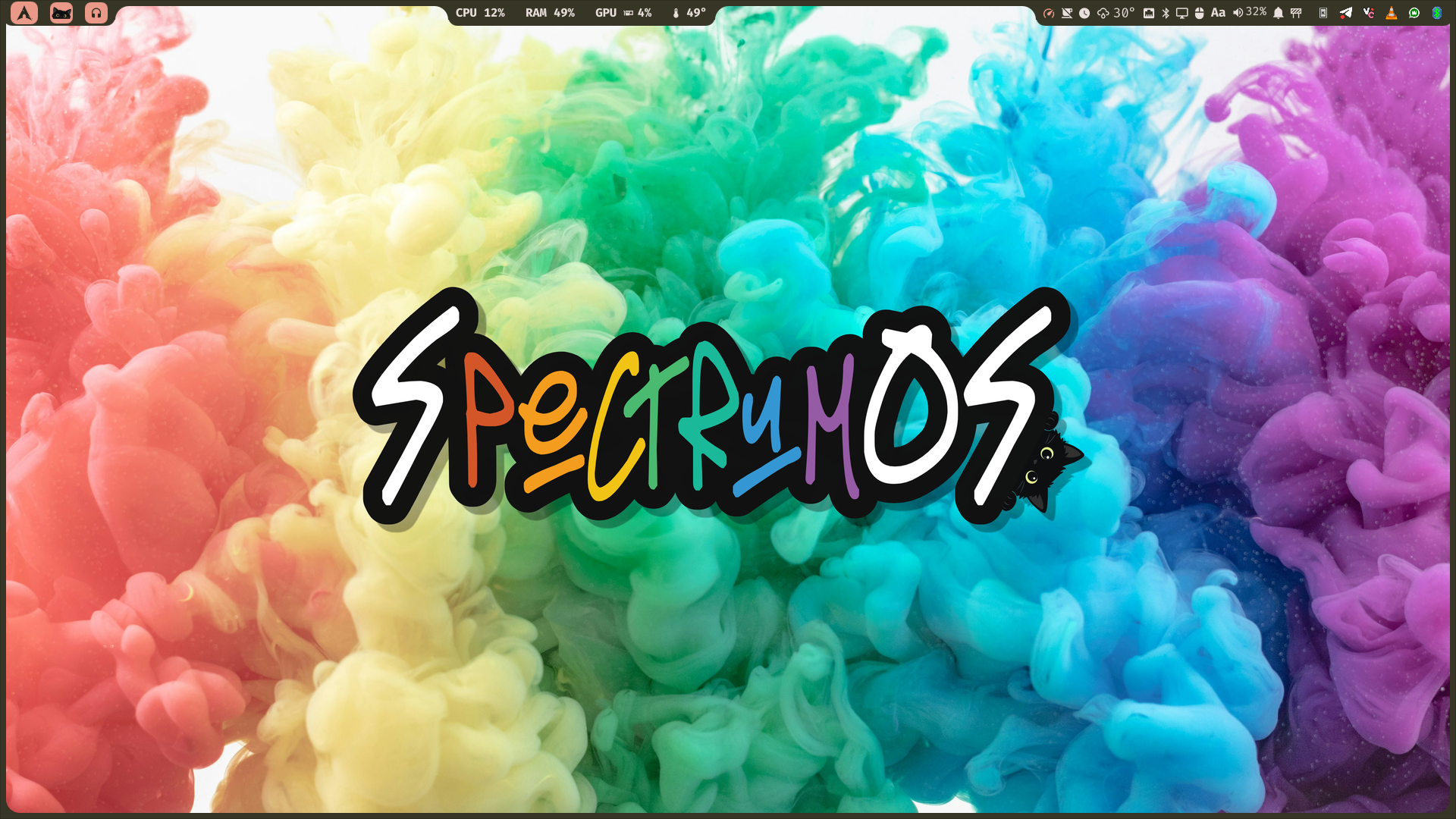
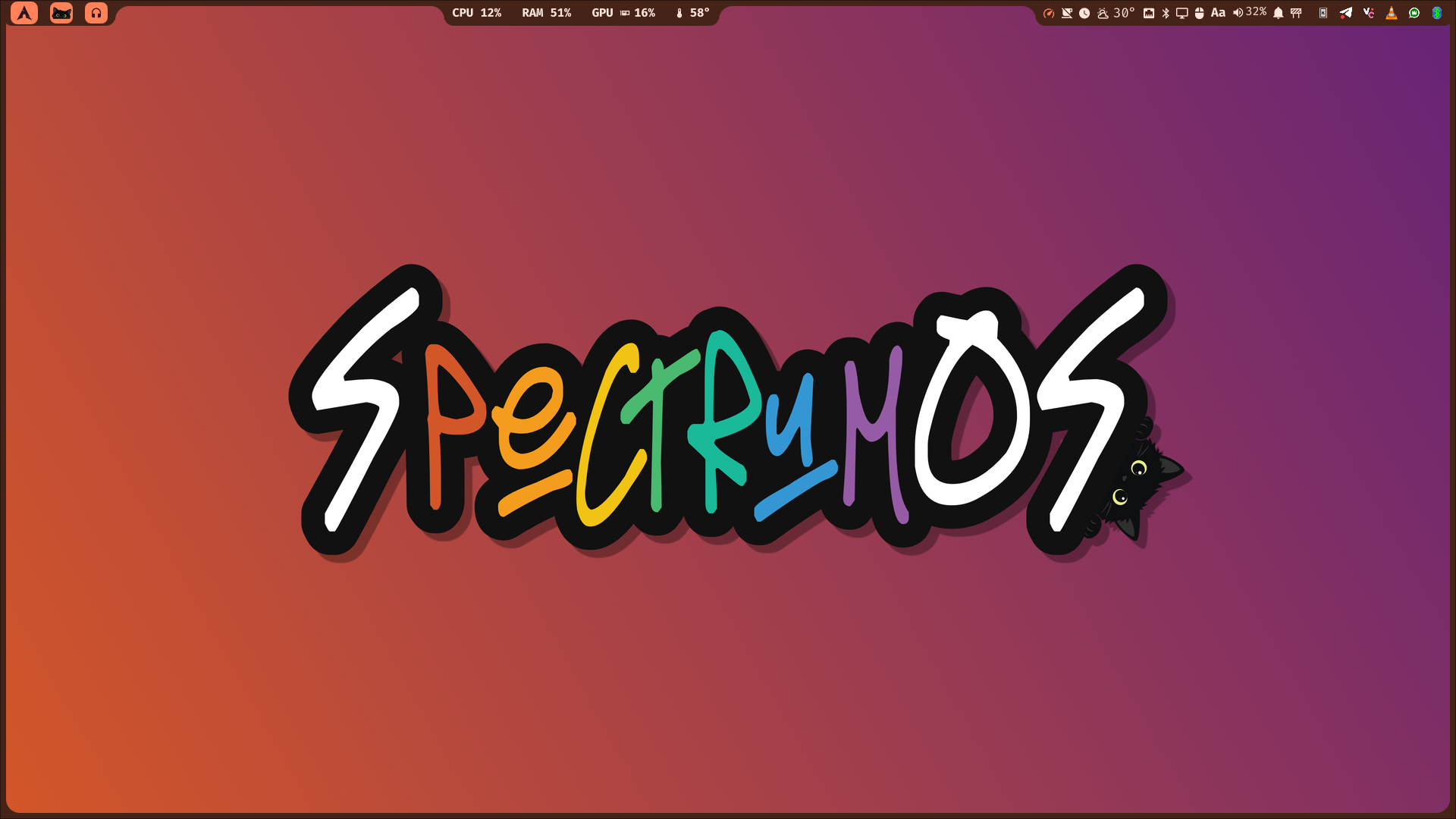
Change your wallpaper and SpectrumOS picks up its colors across the shell, widgets, terminals, and supported apps. Warm sunset, cool blues, or full rainbow: your desktop follows your mood.
The wallpaper widget handles the costume change. Your layout stays yours; the colors get a new quest. The Great Backlog remains undefeated, but it now has excellent art direction.
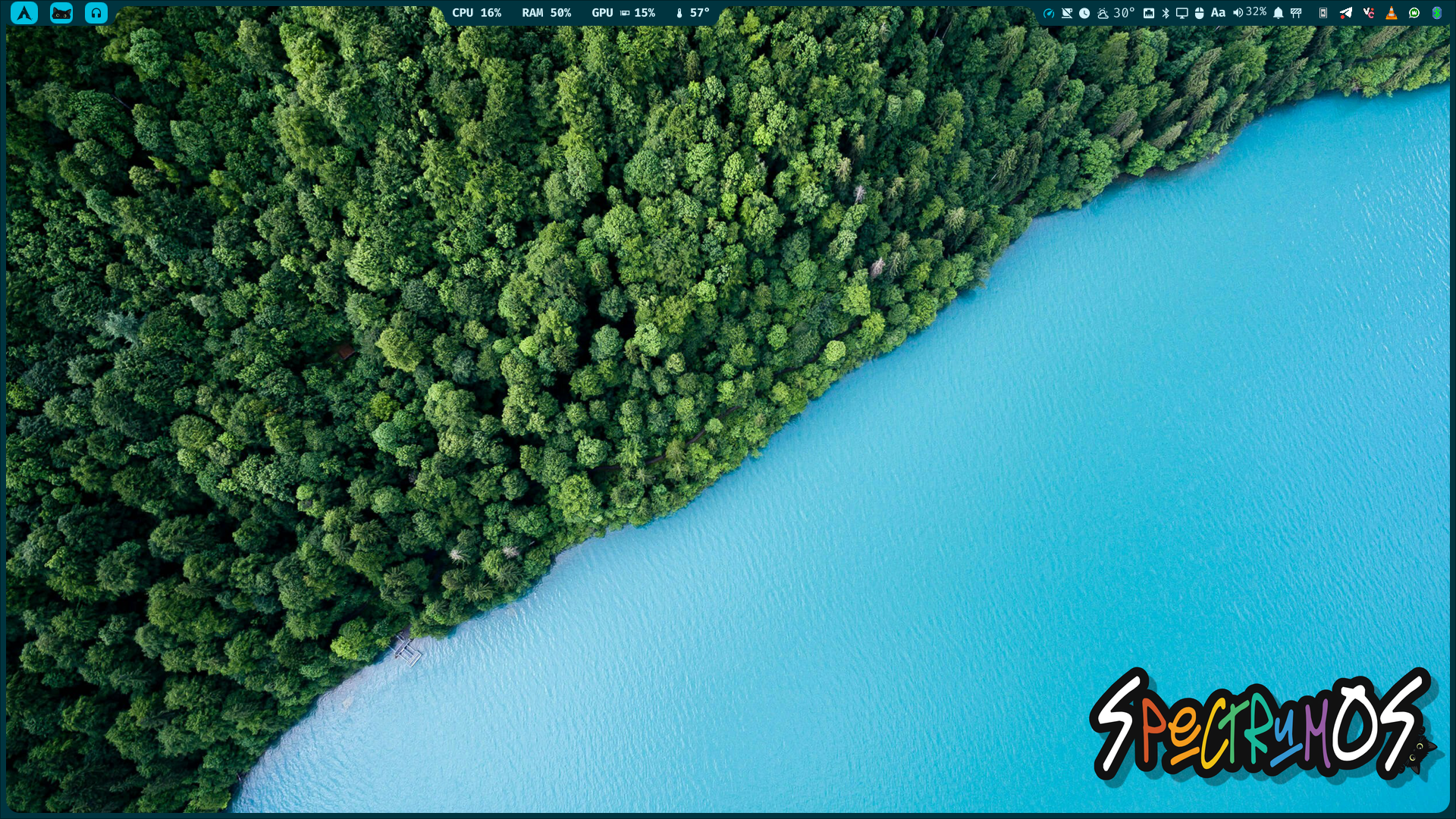
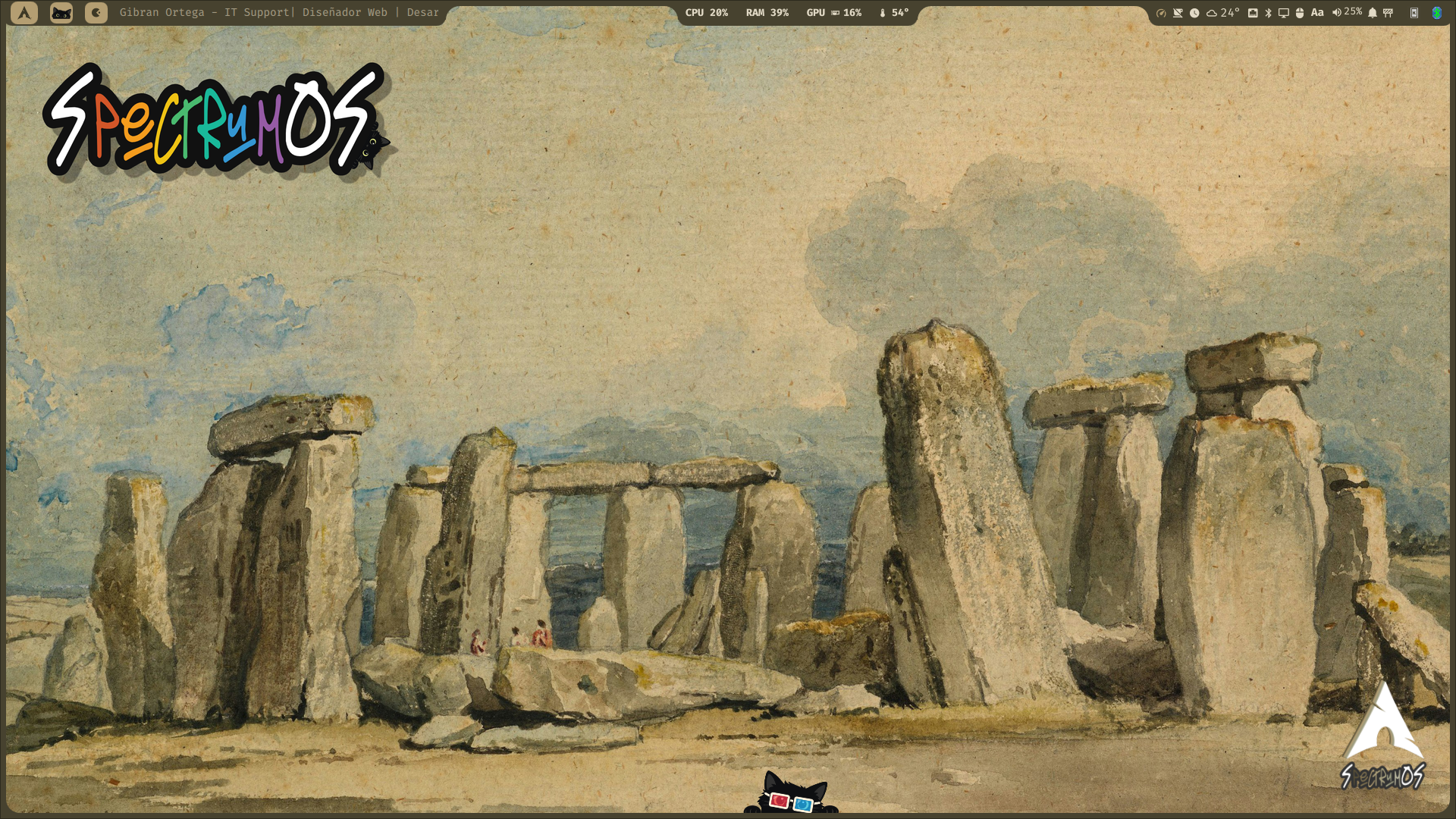
Warm wallpaper. A shell to match.Cool wallpaper. A shell to match.
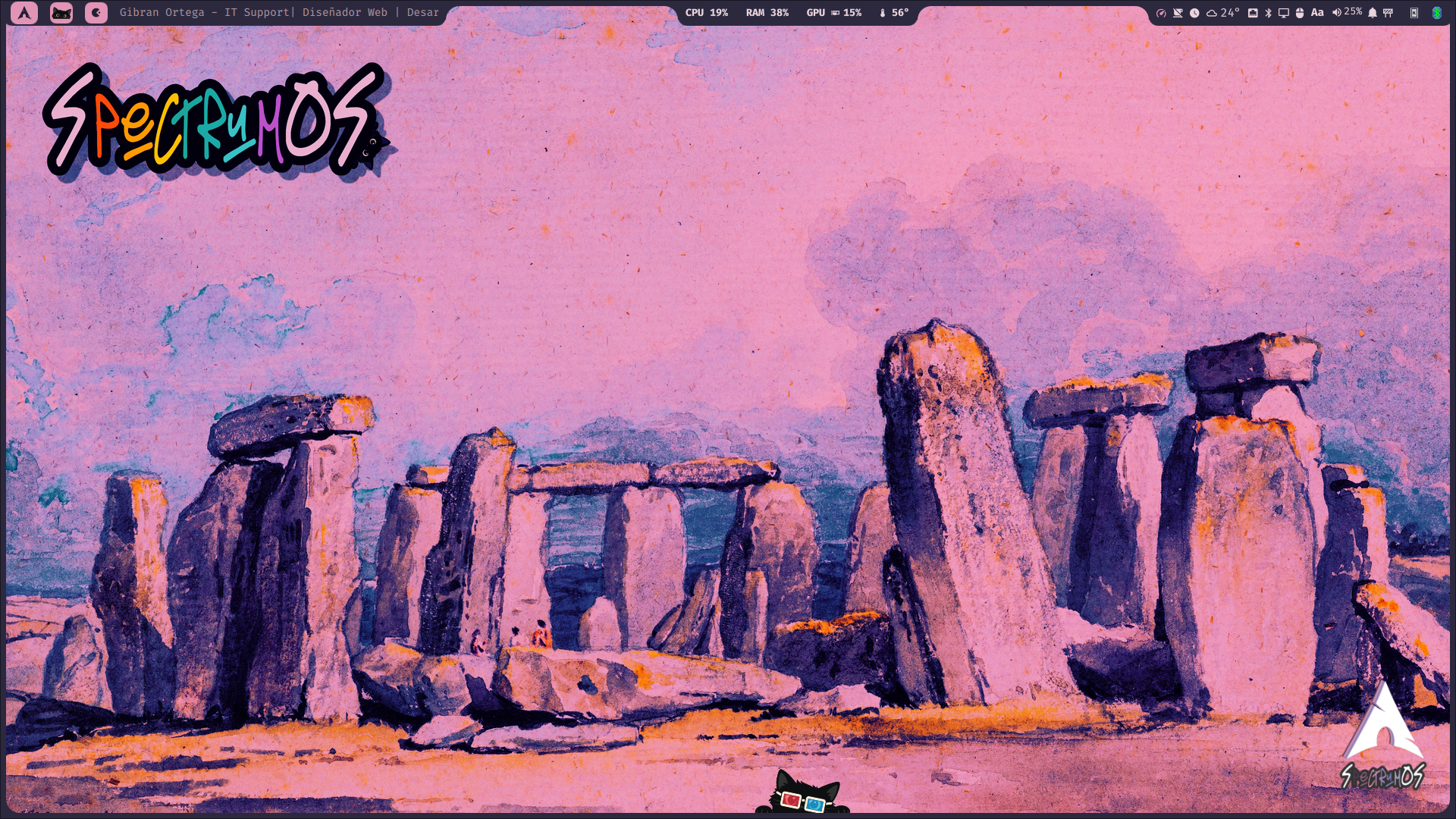
Same landscape. A different spell.
Wallpaper filters are powered by Gowall, an open-source project by Achno. Choose a palette such as Catppuccin, Nord, Gruvbox, or Dracula to recolor your wallpaper. SpectrumOS then draws its desktop colors from the filtered image, keeping the shell, widgets, terminals, and supported apps in tune. Choose None to return to the original wallpaper. The landscape stays; the costume department gets creative. Combine Gowall filters with SpectrumOS’s four palette backends and light or dark variants, and you have literally hundreds of combinations for every wallpaper. One landscape, an entire wardrobe of desktop colors. The Great Backlog has never been so well dressed.
The original wallpaper and its desktop palette.Same wallpaper, filtered colors, a matching desktop.
A widget for almost anything.
From changing your microphone before a call to arranging a second monitor, grabbing a screen recording, or finding that missing file, there is a widget for almost anything. Open it from the bar or with a shortcut, take care of the task, and get back to your flow.
These tools share the same wallpaper-driven colors and feel at home together. System settings, creative utilities, focus tools, and sharing across your desk become part of one desktop. Your utility belt is already packed; the next quest is yours.
Your command post
Control Center and Dashboard bring system readings, weather, calendar, battery, and power profiles together. Notifications, Do Not Disturb, and Keep awake help the desktop follow your day.
Sound, screens, and connections
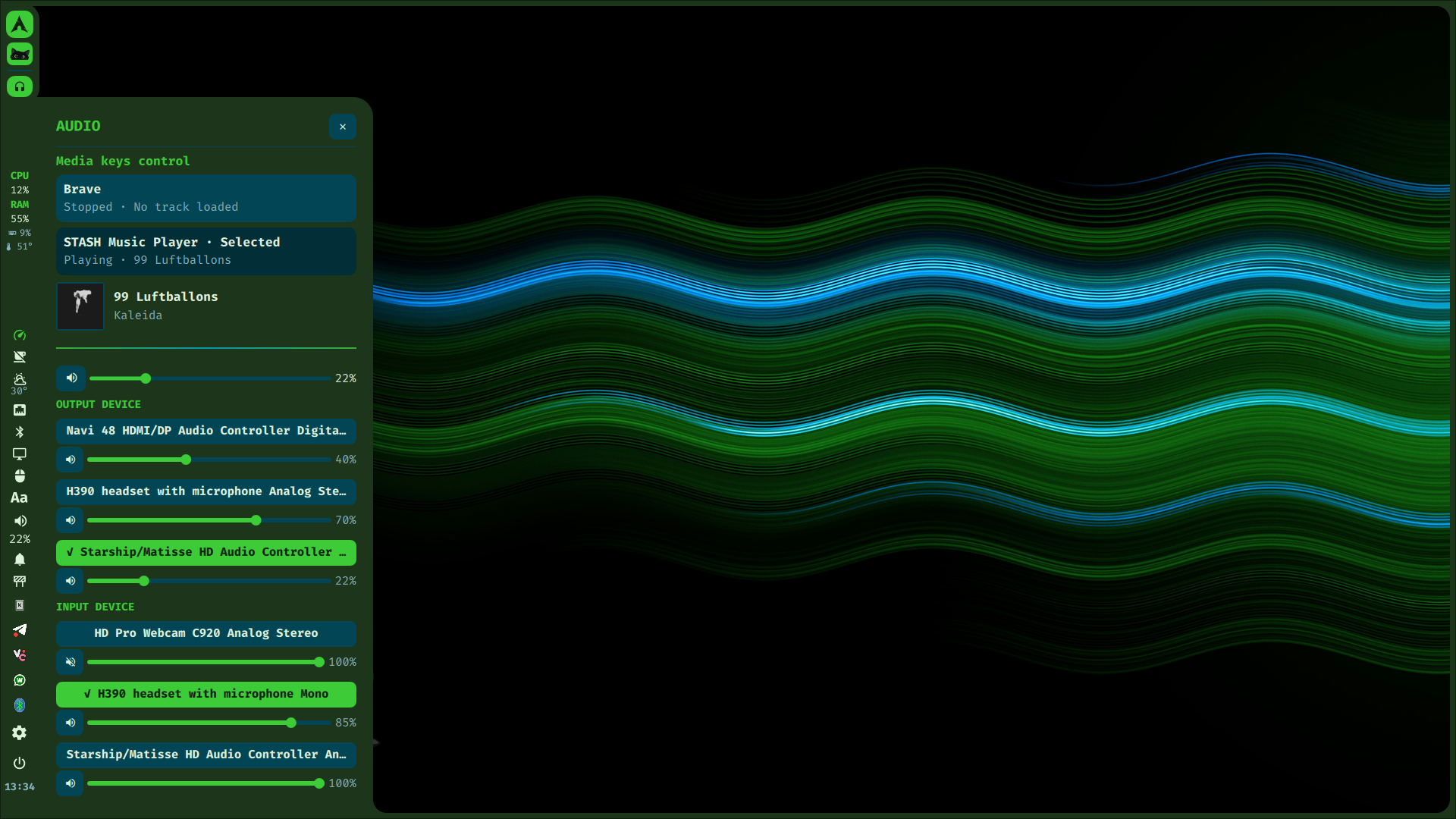
Choose speakers and microphones, control music, arrange monitors, adjust resolution, refresh rate, scaling, and supported brightness. Connect Wi-Fi and Bluetooth devices from their own widgets.
Capture and record
Take screenshots or record a screen, window, or area. The audio recorder captures a microphone, desktop sound, or both; visible indicators keep active recordings in sight.
Small tools, fewer detours
File search, a calculator, password generator, emoji picker, and screen color picker handle the little jobs. Save your favorite colors for the next creative side quest.
Make it yours
Change wallpapers and palettes, bar layouts, fonts, keyboard layouts, and mouse settings. Add downloaded AppImages to the launcher without sending yourself on a configuration-file expedition.
Focus and automate
Start a focus timer or use Questline’s task and focus views. HotKey repeats keys or sequences at your chosen interval, with a shortcut to toggle the routine.
Share across your desk
UKVM shares a keyboard and mouse between trusted Linux machines, with optional clipboard and file sharing. SpectrumDrop adds nearby file transfers where hardware and peer support allow.
Update and carry on
Review system, AUR, and Flatpak updates from the update widget. Supported Btrfs setups get restore points during system upgrades. Lock, suspend, or end your session when the quest is done.
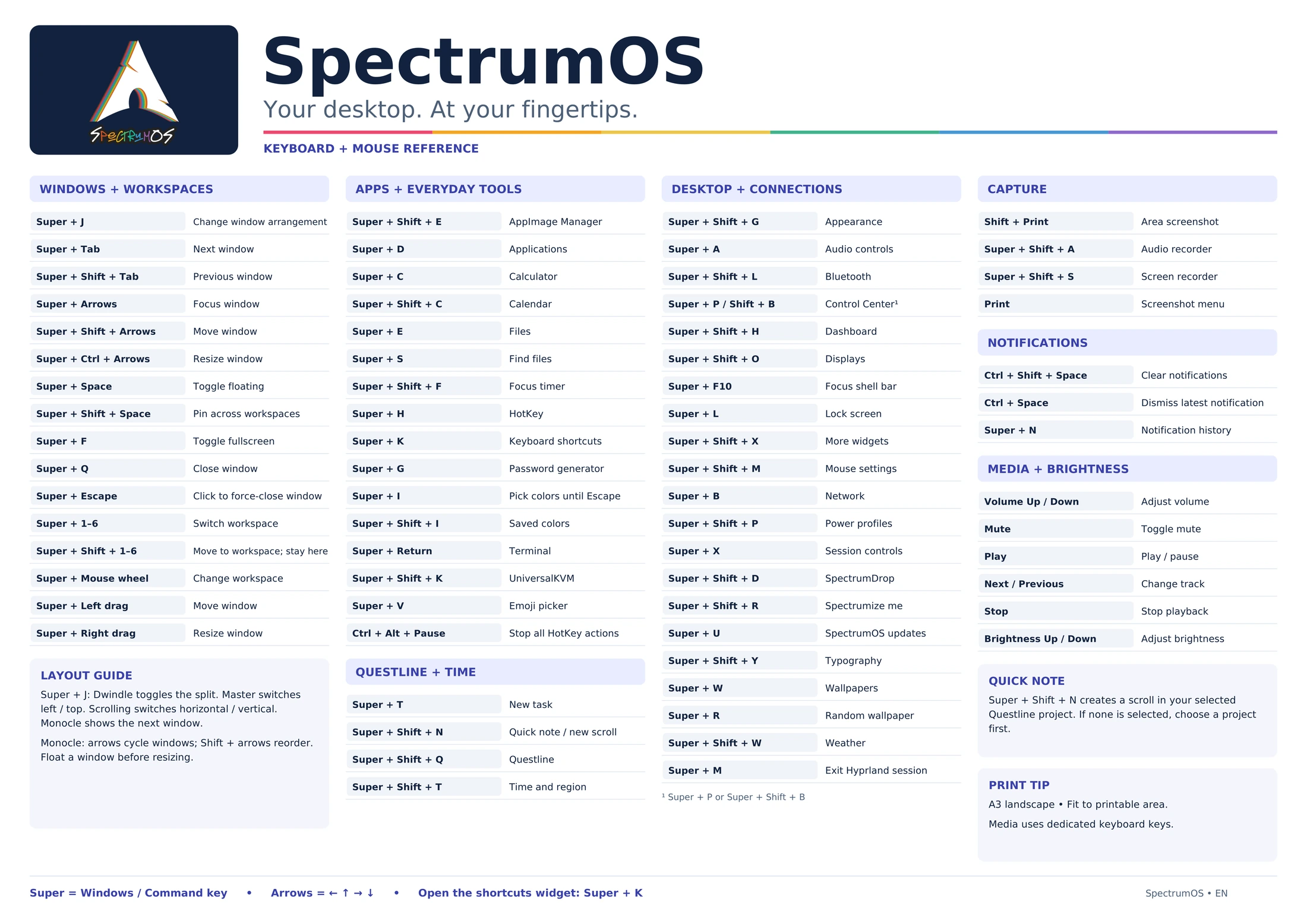
Lost in the shortcut forest? Press Super + K to open the Shortcuts widget and see all the keyboard shortcuts. Even heroes are allowed to check the map.
Everyday controls, without the menu expedition.
Work, play, and side quests.
Stash, Questline, and UKVM are included in both Full and Lean installations. Each has a job of its own; together they bring your soundtrack, your next quest, and the other computers on your desk into SpectrumOS. Meet the party before the next encounter with the Great Backlog.
For development and everyday work, Hyprland workspaces and keyboard navigation keep your editor, terminals, browser, and chats organized. Arch packages, the AUR through Paru, and Flatpak with Flathub give you room to build the setup that suits you.
When it is time to play, the optional Gaming profile brings Steam, Lutris, Wine Staging, Proton GE, GameMode, Gamescope, and MangoHud into the party. Launch your games, tune your setup, and watch performance without leaving your daily desktop. Your next match can still count as “research.”
Stash
Your files. Your music. Your soundtrack to the side quest.
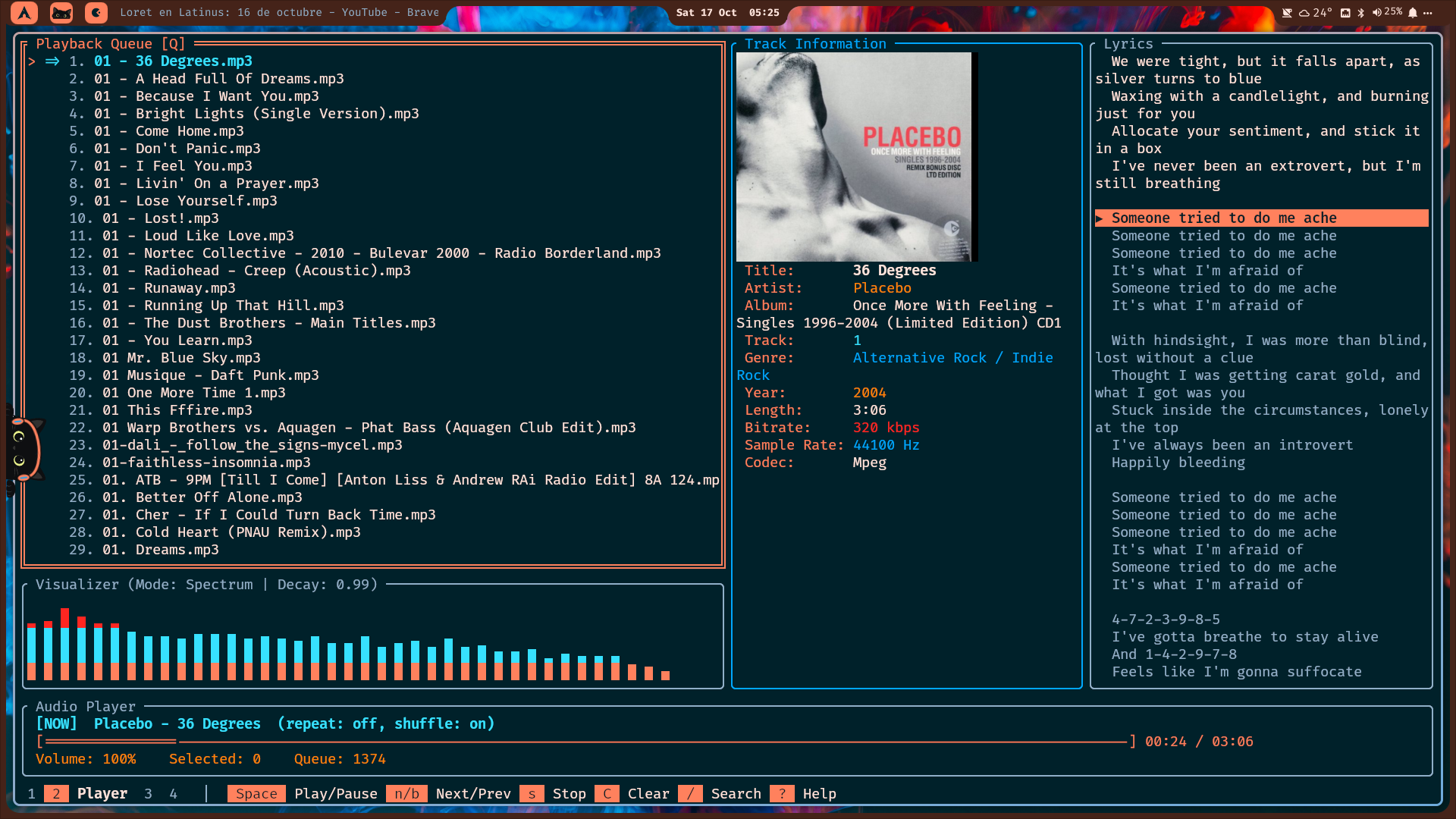
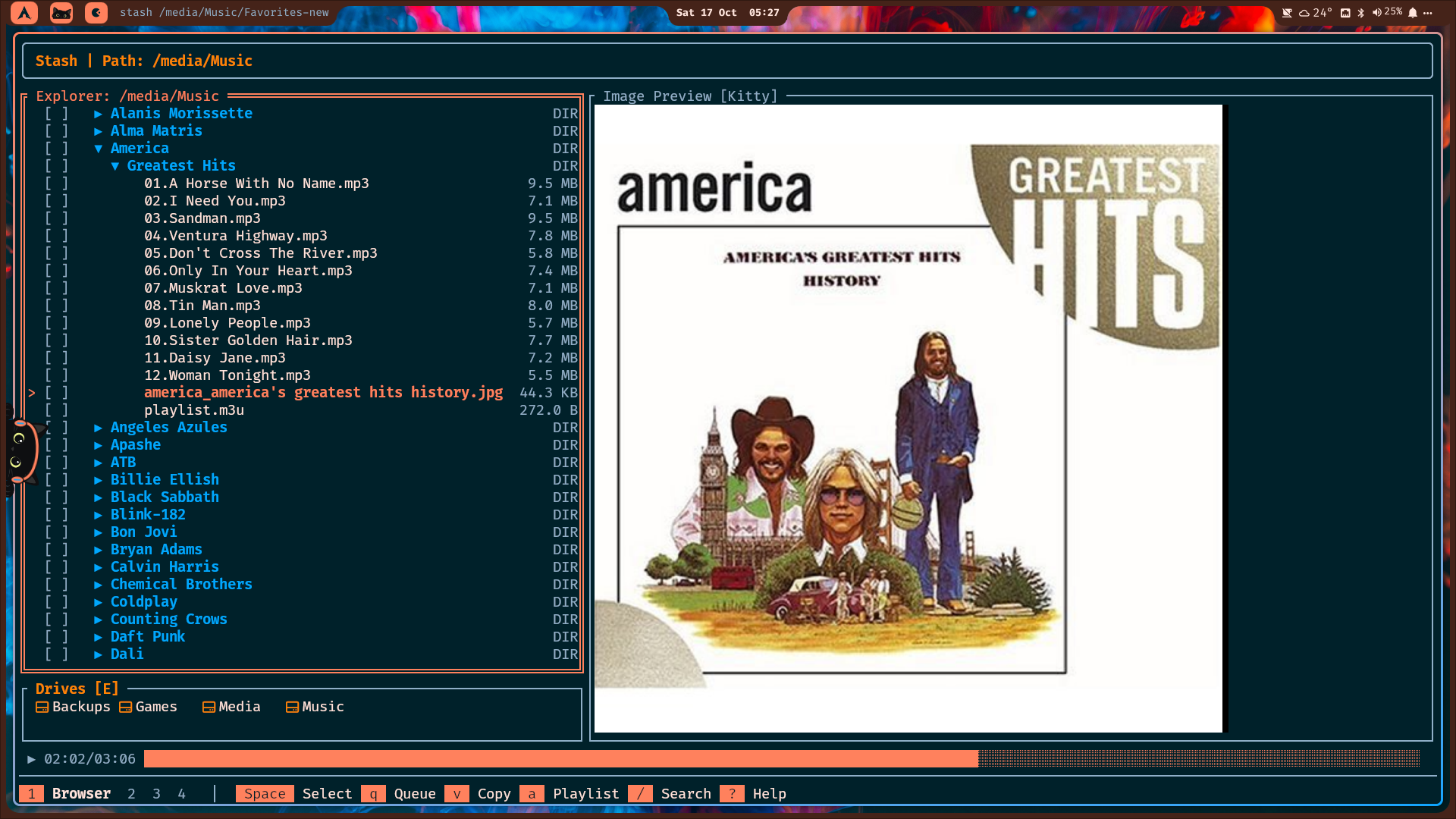
A music library should be something you enjoy, not another campaign to manage. Stash brings a music player, a searchable library, and a dual-pane file browser into one keyboard-driven Rust terminal app. Browse a folder, queue an album, and keep your hands on the keyboard.
In SpectrumOS, Stash follows the desktop colors and shares track information and artwork with the media widgets through MPRIS. Your soundtrack gets a place on the desktop, and Igor gets an excuse to wear his headphones.
A library you can actually navigate
Search and sort your collection, build playlists, edit tags, and queue tracks with shuffle, repeat, and seeking.
Lyrics for the journey
Embedded lyrics, online lookup when needed, and cached results for later listening. Timestamped lyrics follow the song when available.
Two panes, fewer detours
Preview files, select batches, and copy or move them with background progress while the music keeps going.
Send in the Library Healer
Find missing or broken metadata, review suggested fixes, and decide what to apply. Even track_07_FINAL.mp3 deserves a redemption arc.
Launch Stash from the app launcher, or run stash in a terminal.
The soundtrack to your next quest.Two panes. One less file-management side quest.
Questline
The Great Backlog has acquired a health bar.
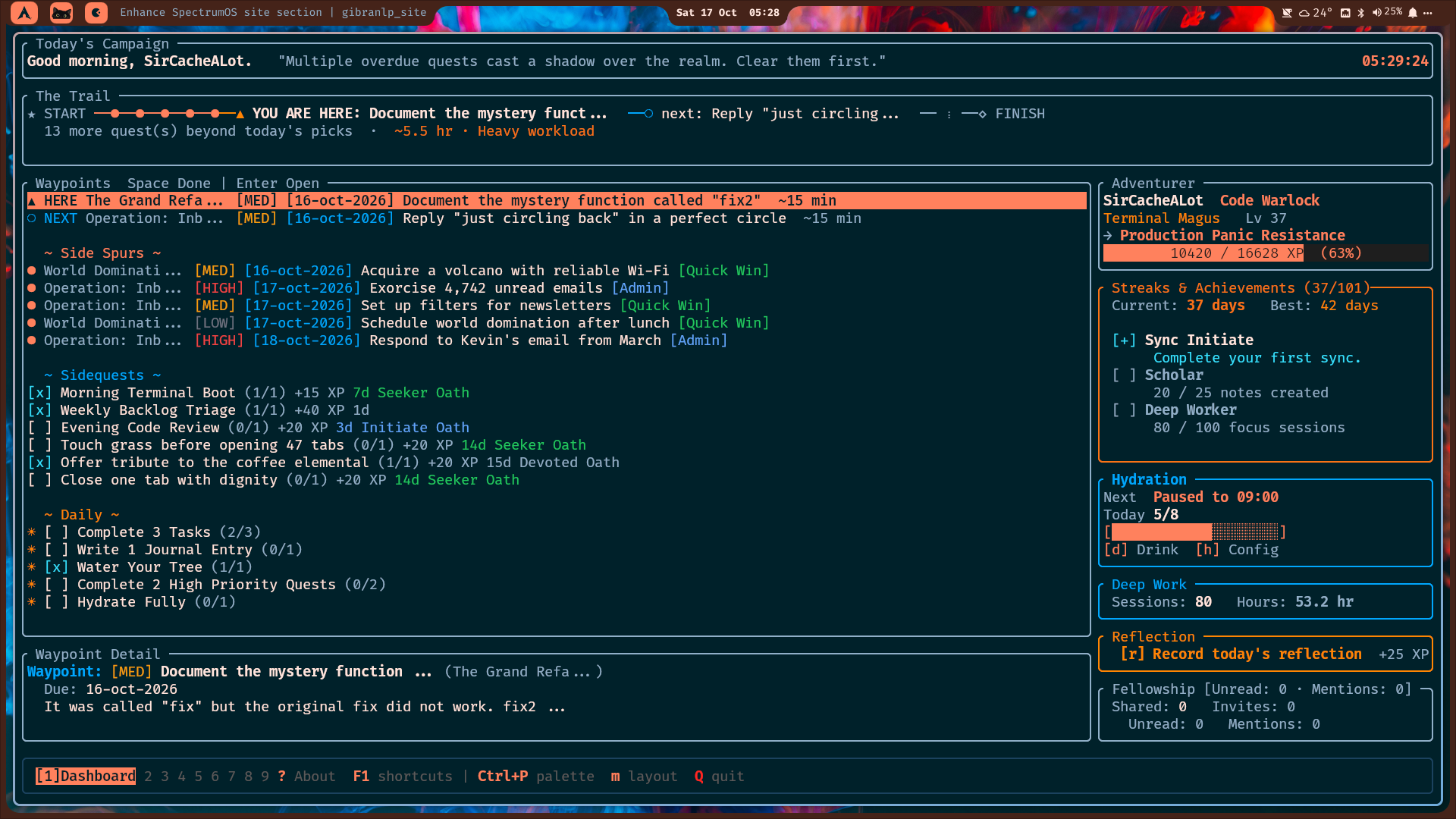
Turn projects into Campaigns, tasks into Quests, and notes into Scrolls. Questline is a terminal productivity RPG where finishing real work earns XP, grows your Zen Tree, and gives your hero a story worth telling. The Notification Swarm has had an unfair advantage for long enough.
Keep the practical tools behind the adventure: priorities, due dates, task steps, Markdown notes, focus sessions, ambient soundscapes, and a Treasury for project money. Work offline by default, with optional device and Fellowship sync when you want company on the campaign.
A quest board with a purpose
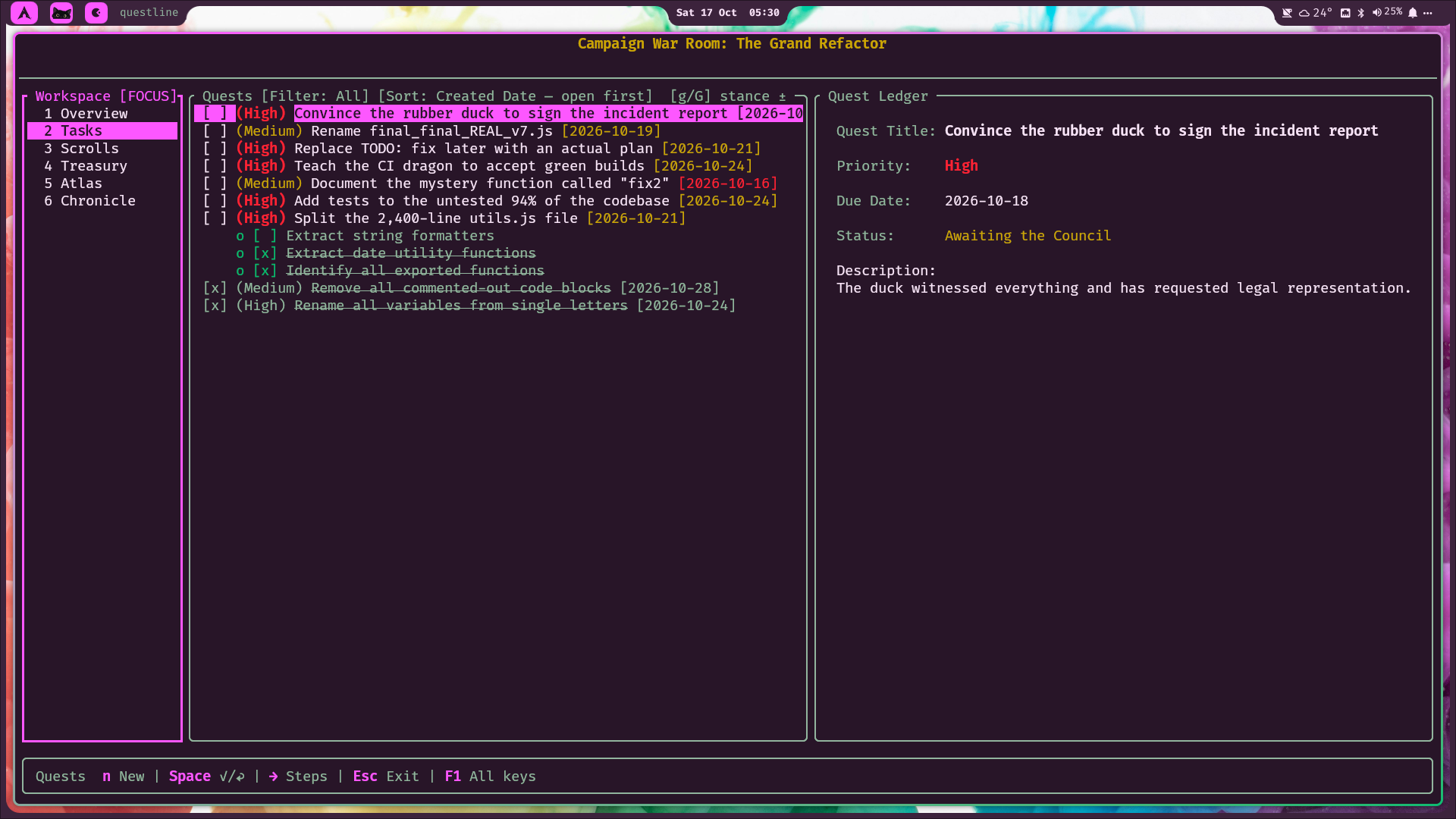
Break a Campaign into Quests and steps, set priorities and deadlines, and turn “I should work on that” into a next action.
Scrolls worth keeping
Capture ideas, decisions, and project notes in Markdown. Future you can consult the archives instead of reconstructing the plot.
Focus, grow, level up
Settle into a focus session with a soundscape, earn XP, and tend your Zen Tree. Your hero progresses while your actual work gets done.
The Treasury keeps the receipts
Track project income, expenses, budgets, and accounts. Defeating the deadline dragon is admirable; remembering its invoice is also useful.
Run questline for the terminal adventure. Open its shell widget with Super + Shift + Q.
Your hero, your tree, your next quest.A Campaign with an actionable battle plan.
Your quest board, right in the shell.
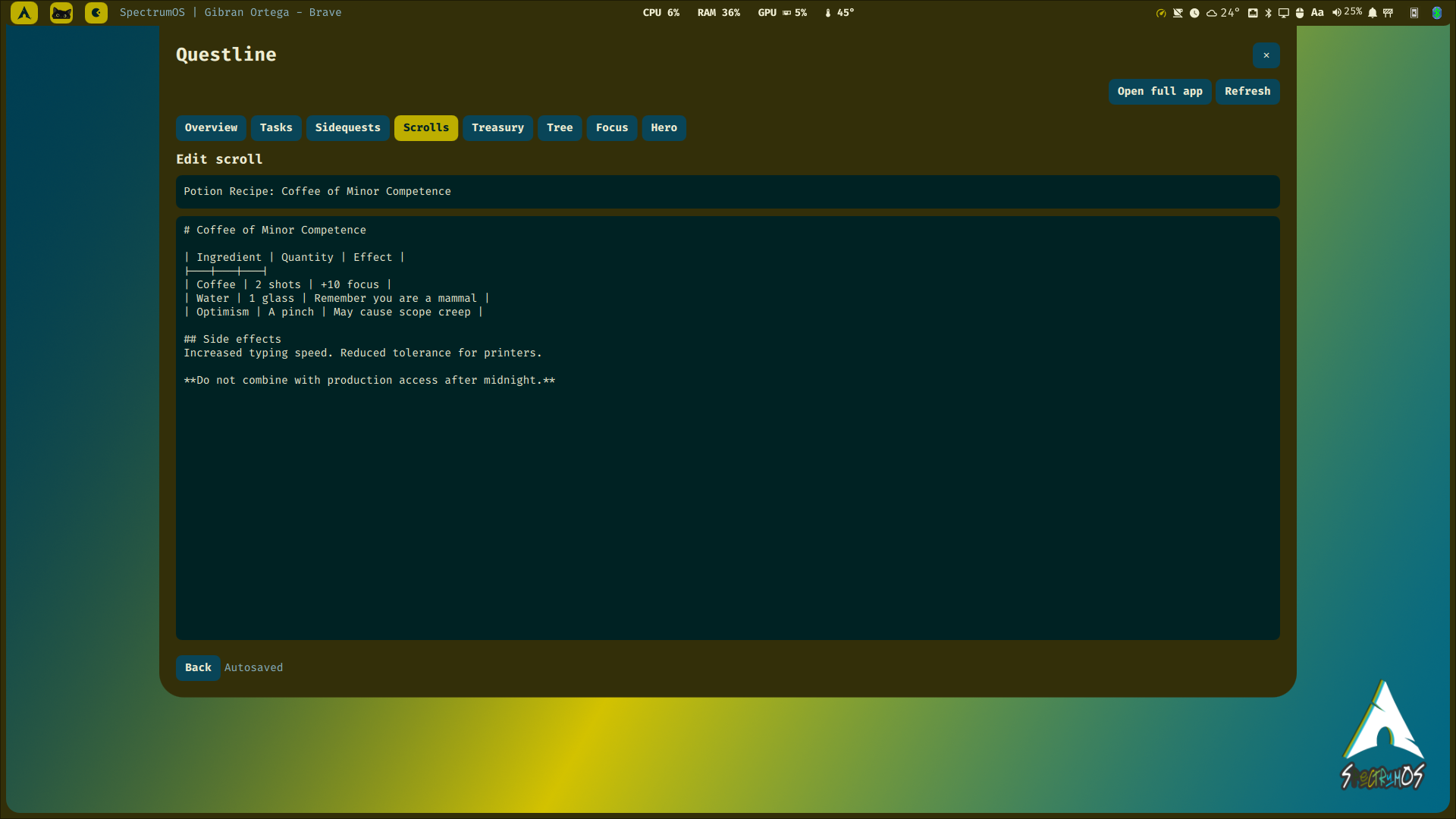
The native Questline widget brings Overview, Tasks, Sidequests, Scrolls, Treasury, Tree, Focus, and Hero into the desktop. Check the next quest, edit its steps, write a Scroll, or update the Treasury without opening a terminal.
Edits autosave, and the widget remembers where you left off when you close and reopen it. Mid-scroll when a new encounter appears? Return to the same draft and keep writing. The Save Button has retired from active duty.
Press Super + Shift + N for a quick Scroll in the selected project. If no project is selected, choose one and start writing immediately. Capture the idea before it escapes into the Forest of Forgotten Thoughts.
Close the panel. Return to the same Scroll. Continue the story.
UKVM · UniversalKVM
One keyboard. One mouse. A bigger party.
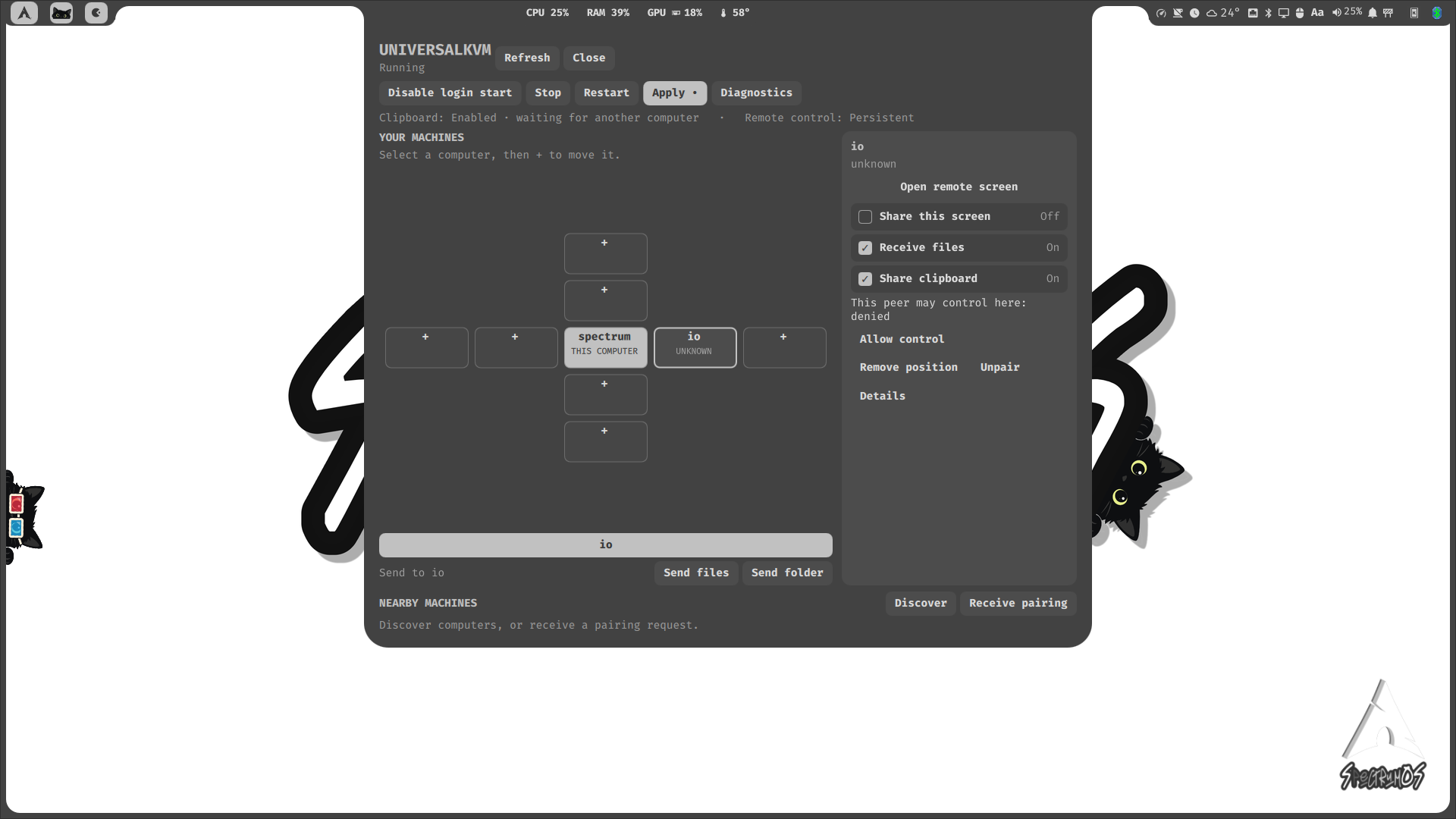
Your second computer does not need a second set of desk gymnastics. UKVM shares keyboard and mouse control between trusted Linux computers, each with its own display. Move across a configured screen edge to take the controls on another machine.
The SpectrumOS widget keeps setup, discovery, pairing, peer arrangement, service status, and permissions together. Optional text clipboard sharing and file or folder transfers make moving between machines more useful than another round of “I emailed it to myself.”
Arrange your desk
Place paired computers in the widget to reflect where they sit, and see which peers are available.
Pair with intention
Compare pairing codes and approve the requested desktop permissions. Finding a computer on the network does not automatically grant it control.
Share what you choose
Enable text clipboard sharing and file reception separately for trusted peers. Pick files or folders to send from the native widget.
Open the UKVM widget with Super + Shift + K. Current SpectrumOS integration focuses on Linux Wayland with compatible desktop portals. Keyboard and mouse control for Windows and macOS is in development.
An equipped desktop. Room for your favorite tools.
Both Full and Lean ship with an everyday toolkit alongside Stash, Questline, and UKVM. Browse files, play media, check mail, connect your phone, and get to work without assembling the entire party from scratch.
Files and archives
Thunar · File Roller
Browse files, preview supported formats, manage removable drives, and create or extract archives. Thunar’s custom actions also put image conversions and PDF merging within reach.
Music, video, and images
Stash · VLC · Swayimg
Give local music its own library, play videos, and open images. Your media widgets keep supported playback controls close at hand.
Mail and your phone
Evolution · KDE Connect
Keep email and calendars together, and connect a compatible phone for everyday desktop integration.
Choose your terminal, inspect storage, keep an eye on running processes, and check the system behind the colors.
Connections and sound
Blueman · NetworkManager · Pavucontrol
Bluetooth, network connections, and audio have their own desktop tools, alongside SpectrumOS’s integrated shell widgets.
Your homegrown party
Questline · Stash · UKVM
The quest board, the soundtrack, and control across your Linux computers are included in both installation sizes. Their full introductions are just above.
Pack for your own adventure.
Full adds printing and network-sharing tools, background transfers with Transmission CLI, and the AUR apps Vesktop and Gowall. Lean keeps the core toolkit and skips those extras. Google Chrome, Brave, and Zen Browser are optional selections in the installer; choose the browsers you want. The Gaming profile adds its own tools, including Steam and Lutris.
More apps, fewer detours.
Flatpak and Flathub, integrated.
Flatpak support and Flathub configuration are included. Installed Flatpak apps appear in the application launcher with the rest of your software, whether installed for your user or system-wide.
The Updates widget’s all-apps workflow can update system and user Flatpak apps alongside the Arch, SpectrumOS, and AUR update flow. More room for your preferred tools; fewer places to check before the next quest.
AppImages get their own widget.
Open AppImages from the bar’s More menu, or find AppImage Manager in the launcher. Choose Add AppImage… and select a download: SpectrumOS makes a managed copy, reads its name and icon when available, and adds it to the launcher.
Launch, Replace…, Remove, and Open folder keep the collection manageable. Replace lets you select a newer downloaded version while keeping its launcher entry. Remove clears the managed app and launcher entry while preserving the original download and app settings. Updates use Replace; the widget does not download new versions automatically.
Arch packages, AUR through Paru, Flatpak, and AppImages: bring the tools that suit your workflow. Your inventory has room for more than one kind of loot.
Your quest companion.
Meet Igor, your adorable companion through life’s quests. He drops by when he feels like it, waves hello, stretches, and occasionally decides your desktop is an excellent place for a nap. His schedule is his own. Visits are completely optional: toggle them with Igor’s button on the bar.
His wardrobe follows the occasion: headphones for music, glasses for videos and movies, and a headset when a supported browser or meeting app uses your microphone. Apparently, even a desktop companion needs separate outfits for work and “research.”
Complete a task in the Questline widget and he may pop in to celebrate, with a little commentary on your heroic productivity. “You earned XP. I earned a nap.” Moral support, delivered on Igor’s terms.
Good company for life’s quests.
Your spellbook, minus the memorization exam.
Window layouts, workspaces, widgets, and Questline quick notes: powerful spells, suspiciously similar key combinations. Keep this keyboard and mouse cheat sheet nearby when your memory runs out of mana. Click the poster to download a printable PDF. Even the Planning Council allows open-book quests.
Try SpectrumOS from a live USB and explore the desktop before installing. Find your colors, meet the widgets, and see how your everyday workflow feels here. Your next daily driver might be one boot away.
Social Networks
Find me across the web